The platform at a glance
The platform has eight kinds of users. Each sees and can do only what its role allows; the server checks every permission again, so the web pages are only a way in.
| Role | What they do | Where |
|---|---|---|
| Operator (platform) | Opens tenants, deploys and runs the service | Command line python -m tlay_api.onboard, cloud deployment scripts |
| Tenant admin | Builds cohorts, creates single-day policies or series, submits them for approval, approves purchases, watches budget, device health, audit and billing | Admin console |
| Key authority admin | Reviews and approves policies (no approval, no decryption key), revokes them, reads the key release log | Key authority console (a separate service, not on the main site) |
| Device owner | Registers a signing key, pairs devices, signs consent, sees earnings | Owner console, Owner statement; signatures are made on the owner’s own device with owner_sign |
| Device | Encrypts, signs and uploads readings under a policy | Device client (ESP32 firmware or the Python reference client) |
| Buyer | Browses the marketplace, requests purchases, runs or subscribes to tasks, reads and exports results | Marketplace, Buyer result, Results & API keys |
| Auditor | Read-only review of policies, releases, receipts and the transparency log | Auditor |
| Anyone | Verifies a result with a receipt id or receipt file | Public verify (no sign-in) |
Four rules hold in every flow:
- Device data is stored only as ciphertext, and only a program approved by the policy, running in a protected environment, can decrypt it.
- Buyers receive only a group result with differential privacy noise. They never get any single device’s data, or even how many devices uploaded.
- Each (cohort, day) is released once. The privacy budget ε is reserved before the run and is not refunded if the run fails.
- Every step leaves a signed receipt and a transparency log entry that anyone can check afterwards.
Getting started
After you sign in, you see only the tabs your role can use. The banner at the top of the page tells you which kind of environment you are in.
Signing in
- Production: sign in with your organization’s single sign-on (Sign in with SSO). A tenant admin first sends an invitation that binds your email to your account. Owners who already have a signing key must confirm a new sign-in binding with their own signature; an admin cannot do it for them.
- Demo environment: switch roles with View as in the top right. Reset demo sessions in the footer appears only in the demo.
- The cloud pilot is not yet connected to an identity provider. Before going live, it needs to be connected to your organization’s OIDC provider.
Tabs by role
| Role | Tabs |
|---|---|
| Tenant admin | Task overview, Admin console, Verification details, Notifications, Public verify |
| Buyer | Marketplace, Buyer result, Verification details, Results & API keys, Notifications, Public verify |
| Device owner | Owner console, Owner statement, Notifications, Public verify |
| Auditor | Auditor, Notifications, Public verify |
| Visitor (not signed in) | Public verify |
Banner and labels


Labels on pages and receipts have fixed meanings and are never mixed:
| Label | Meaning |
|---|---|
| Synthetic data | Generated data, not real device readings |
| Simulated security | Run locally without hardware isolation; the host administrator can read plaintext |
| Attested compute | Computed in Google Cloud Confidential Space, with the hardware attestation checked by the key authority |
| Simulated payment | Simulated payment; no money moves |
| Confirmed payment | Appears only after an on-chain transaction is confirmed; never shown in the pilot |
The banner describes the whole environment. Each task’s own security label (Attested compute or Simulated security) on its task card and receipt is what counts for that task.
Tenant admin
Admins do all the preparation from cohort to settlement in the Admin console, but cannot approve a policy for the key authority or sign consent for an owner.
1. Invite people
Create owners, buyers or auditors under Add a person (admins cannot create other admins), then send sign-in invitations to their email under Invitations. For owners who already have a key, the invitation shows PENDING_OWNER_CONFIRMATION until the owner confirms it with their own signature.
2. Build a cohort
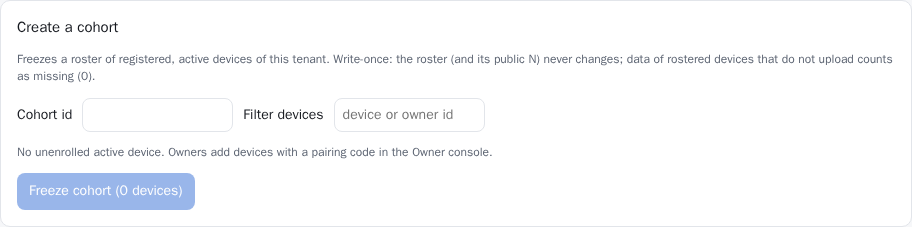
A cohort is a write-once roster of devices. Its size N is public and fixed. A rostered device that does not upload on a given day counts as 0 in that day’s statistic. A device can belong to only one cohort.
3. Create a task: single-day policy or daily series
A single-day policy suits a one-off statistic:
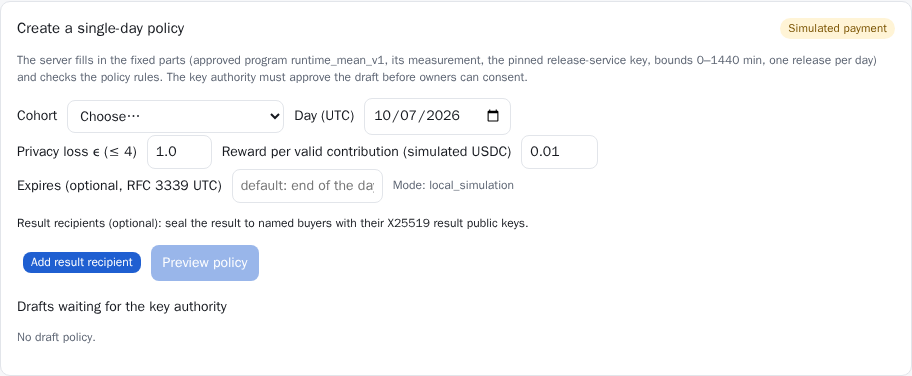
- Fill in the form and click Preview policy. The server fills in the fixed parts (approved program, value bounds, release service key) and checks the rules.
- If it passes, click Create draft policy, then submit it to the key authority. Submitting is not approving: the draft appears under Drafts waiting for the key authority.
- If you name result recipients, the result is sealed to those buyers inside the protected environment, and no one else, the platform included, can open it.
A daily series suits a statistic repeated every day. The key authority approves it once, each owner signs one standing consent, and a child policy is created automatically for each day.
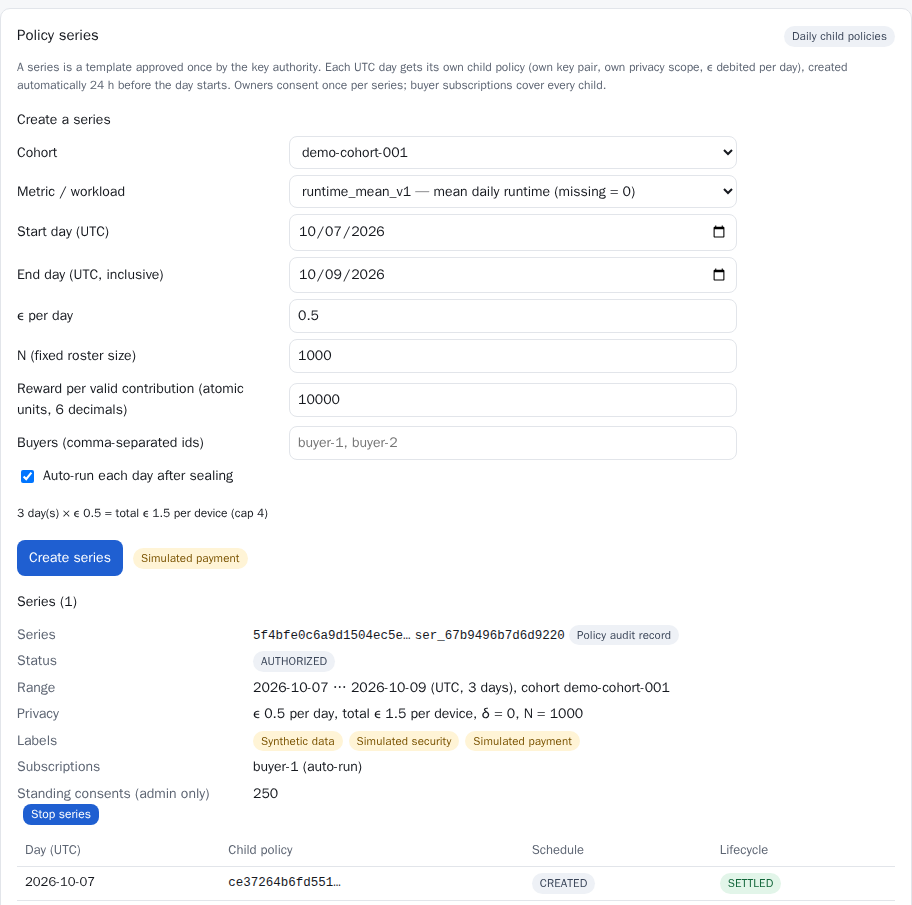
- A series runs at most 92 days. The sum of ε over all days cannot exceed the per-device cap (4 in the pilot); the form shows “days × ε per day = total ε” as you type. For long series, keep ε per day small, for example 0.1 a day for 30 days, 3 in total.
- Each day is still its own privacy scope with its own key. A child policy is created automatically 24 hours before its day starts.
- To end a series early, click Stop series. Child policies already created keep their own validity periods.
4. Seal and run
Once a day’s collection window and grace period have passed, the scheduler seals the day automatically and starts tasks for buyers who subscribed to auto-run; you can also click Run scheduler now on the Scheduler card. The Policies and lifecycle and Releases tables show which step each task is at. Only admins can see the number of valid consents and accepted uploads.
5. Handle purchase requests
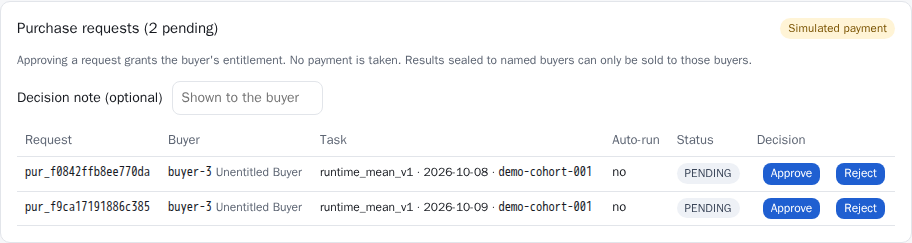
A buyer’s request grants nothing by itself; the buyer can run the task only after an admin approves. Approval re-checks the rules: a task whose result is sealed to named buyers cannot be sold to anyone else.
6. Operations views
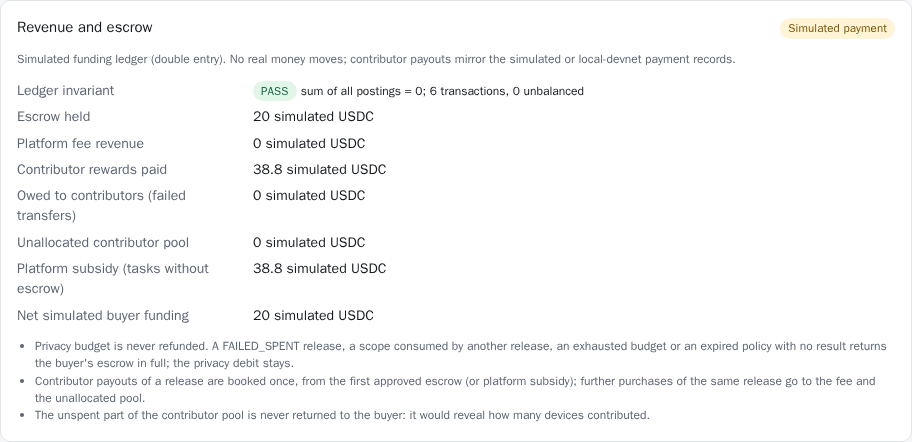
The Admin console has four sub-pages at the top: Privacy budget, Device health, Audit log and Billing (simulated).
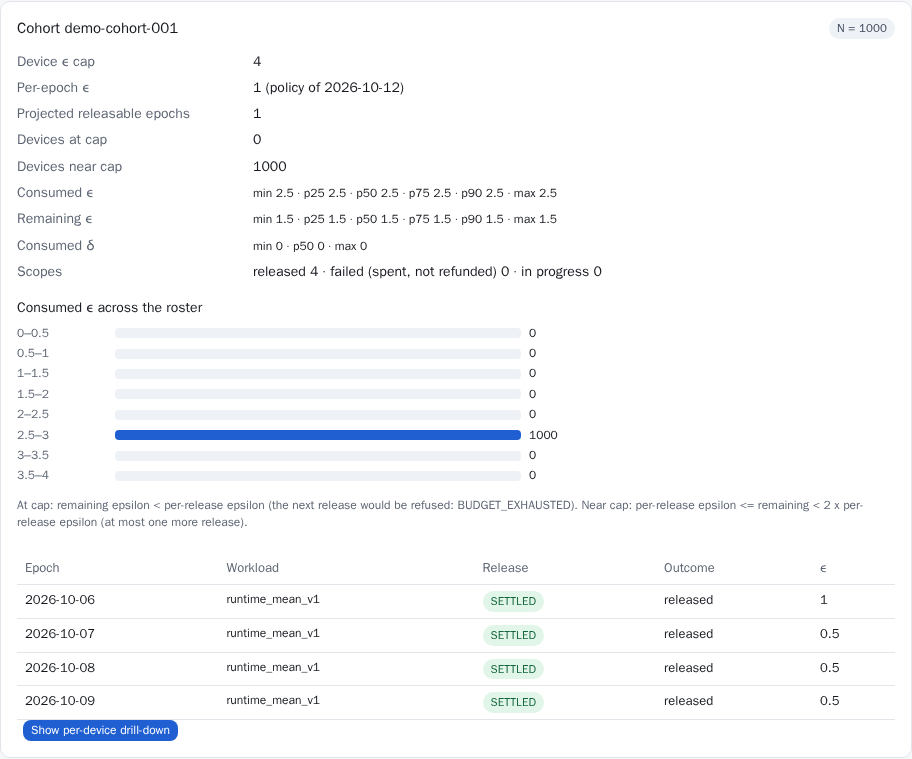
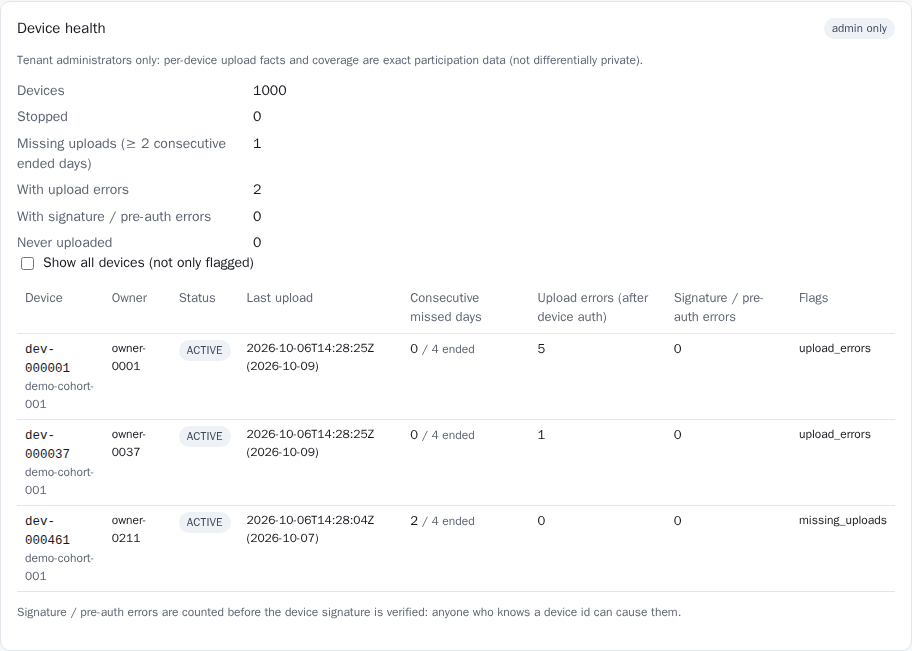
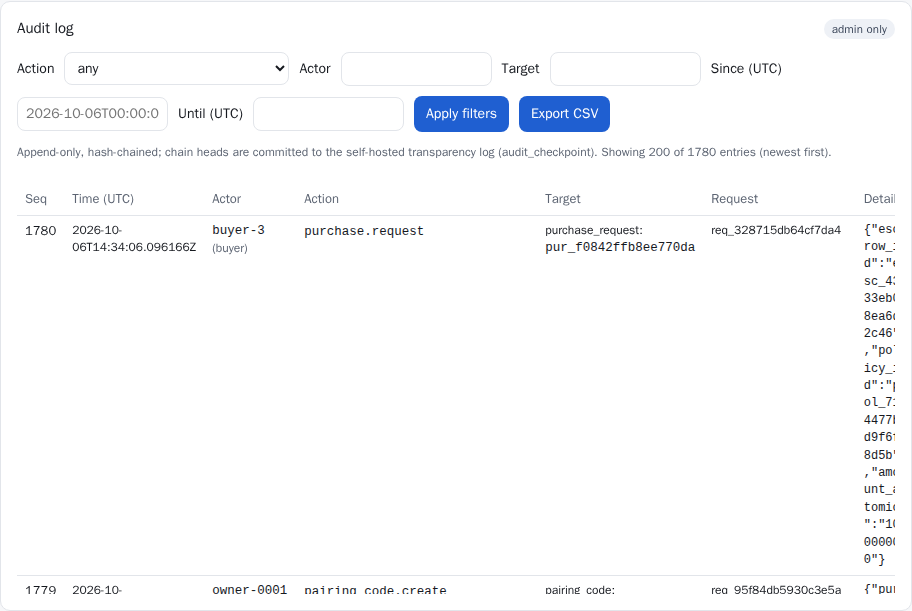
- The audit log is append-only, and its chain head is written to the transparency log at intervals. Verify chain checks that the chain has not been altered.
- Billing is simulated. Platform fee and reward per contribution are set under Commercial terms; the ledger always balances to 0.
Key authority admin
Device data can be decrypted only under a policy the key authority has approved. This step happens in a separate console that neither the control plane nor tenant admins can reach.
Opening the console
- The console is served by the key authority service itself (
/admin/console), not by the main site. In the cloud it is reachable only through an IAP port forward. - Unlock it with the key authority admin token and enter your name, which is recorded with every decision. The token is kept only in page memory and is forgotten when you click Lock or after 15 minutes of inactivity.
Approving policies
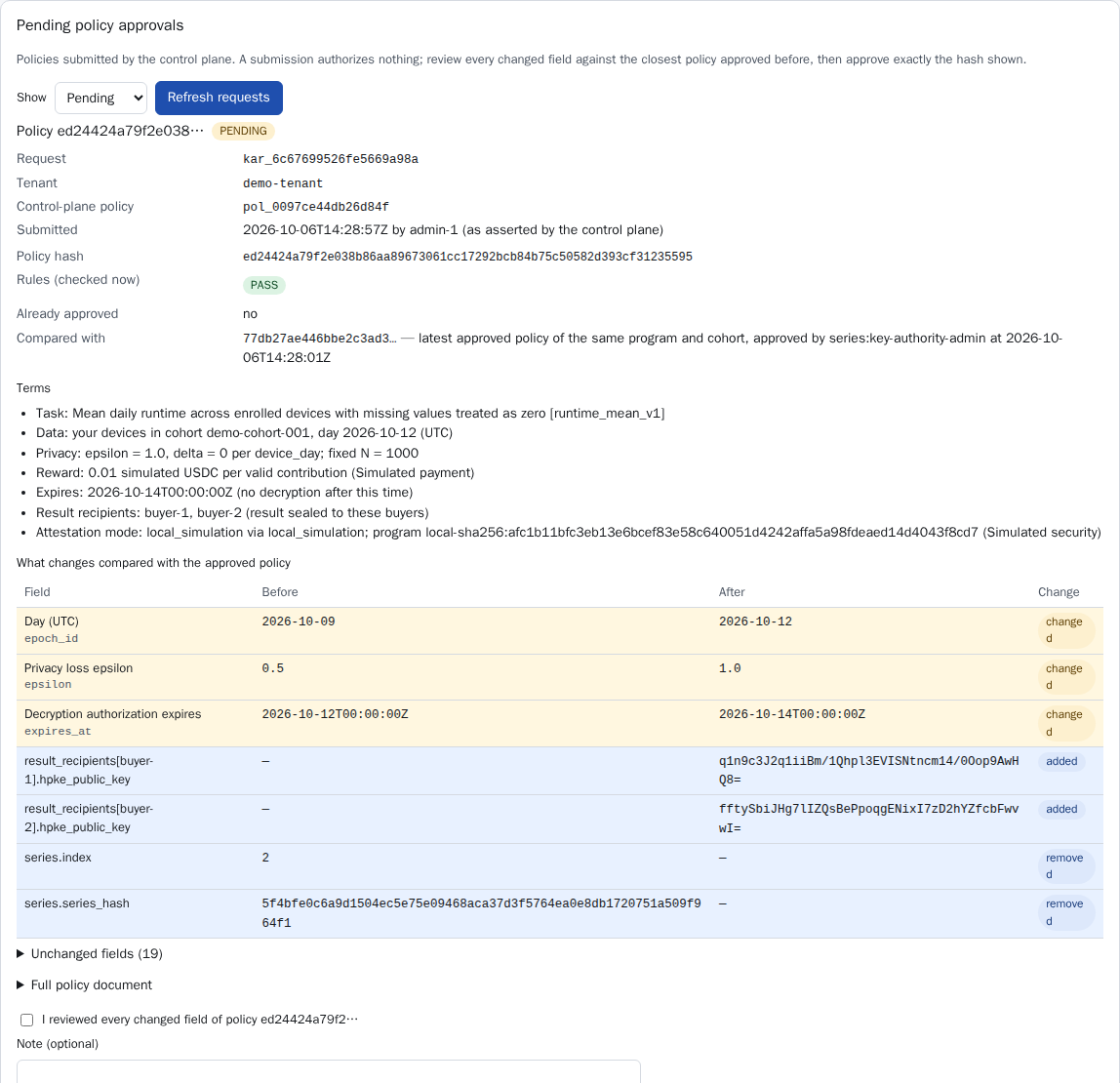
- Pending policy approvals lists drafts submitted by the control plane. A submission authorizes nothing by itself.
- Check each item under What changes compared with the approved policy: yellow marks a change, blue an addition or removal. Pay attention to ε, expiry, result recipients and the program digest.
- Tick I reviewed every changed field, then click Approve policy; if you disagree, Reject it and give a reason.
- A daily series needs approval only once. After that, the key authority recomputes and checks each day’s child policy itself, and refuses any that falls outside the series, comes from a changed template or belongs to a revoked series.
Revocation and the key release log
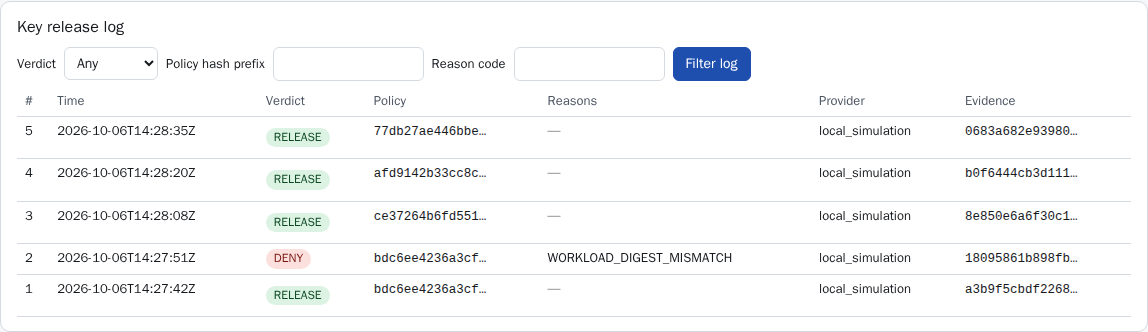
- Policies can be revoked under Approved policies; no keys are released for a revoked policy. To stop all key releases at once, you can also disable the KEK version in Cloud KMS.
- The Key release log records every release decision. Denials carry a reason code, for example ENV_OVERRIDE_NOT_ALLOWED (the program was started with a parameter that is not allowed) or PROJECT_NOT_ALLOWED (it ran in a cloud project that is not allowed).
- KEK health checks that the key-encryption key is available.
Device owner
Owners decide which tasks their devices’ data is used for. Every authorization is signed with your own signing key on your own device; neither the browser nor any admin ever holds that key.
1. Register your signing key (once)
Generate a key on your own computer or phone and print its public key:
python -m tlay_client.owner_sign --key-file ~/.tlay/owner.key --keygenPaste the printed public key into Owner signing key and authorizations in the Owner console. A public key can be registered only once. Later sign-in bindings, payout address changes and task consents are all signed with the same command.
2. Pair a device
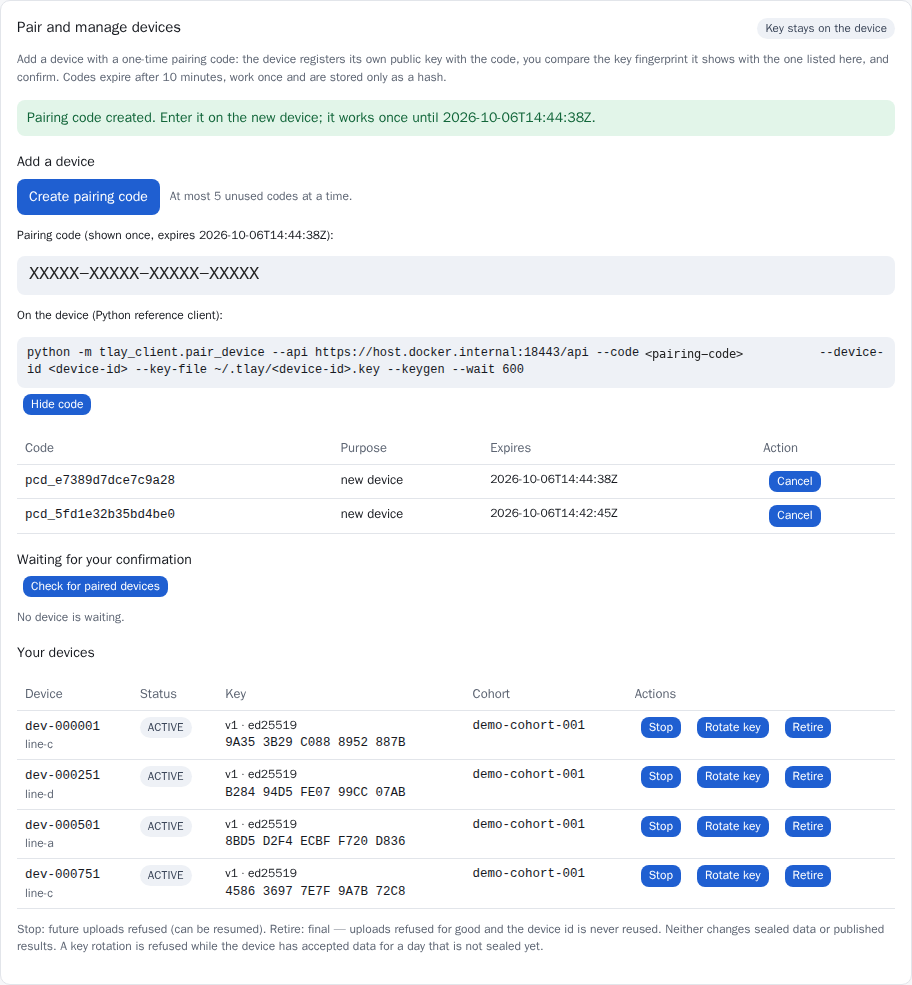
- Click Create pairing code. The code is shown once, is valid for 10 minutes and works only once.
- Enter the code on the device (the Python reference client uses the
tlay_client.pair_devicecommand shown on the page). The device generates its own key and shows its key fingerprint. - Click Check for paired devices and compare the fingerprint on the page with the one the device shows. Confirm only if they match.
Managing devices: Stop pauses uploads (it can be resumed); Rotate key gives the device a new key and is refused while the day’s data is not yet sealed; Retire removes the device for good, and its id is never reused. None of these change sealed data or published results.
3. Consent to a single-day task
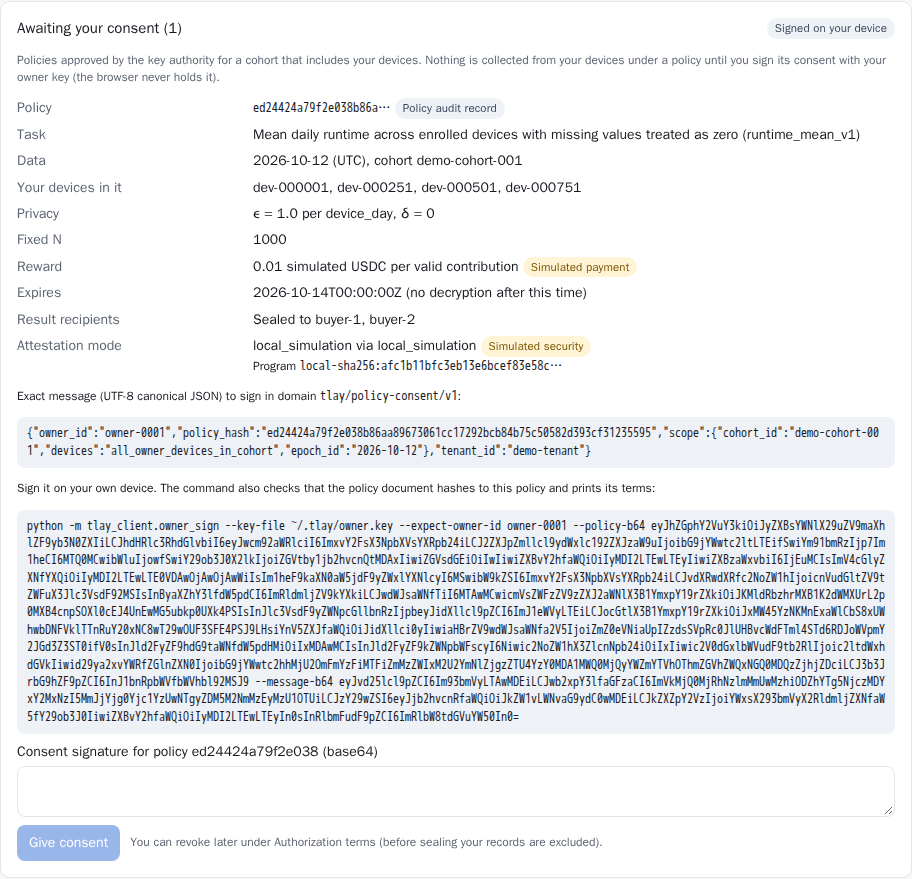
- Read the terms. Policies the key authority has not approved never appear here.
- Copy the
owner_signcommand from the page and run it on your own device. It recomputes the policy hash itself, prints the terms from the policy document, and signs only after you confirm. - Paste the signature back into the page and click Give consent.
To revoke, click Revoke under Authorization terms. If you revoke before the day is sealed, your records are excluded (counted as missing = 0); after sealing, revocation affects only later days, and published results are not withdrawn.
4. Standing consent for a daily series
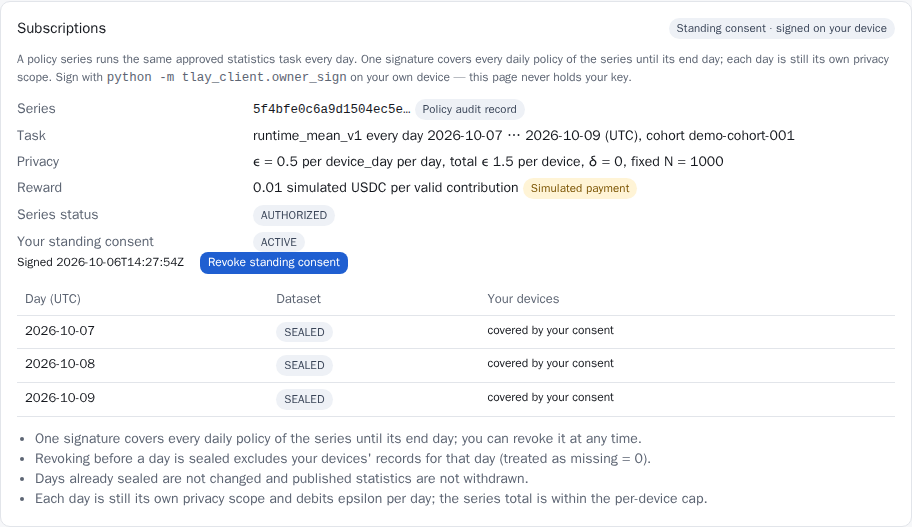
One signature covers every day of the series, up to its end day. The signing steps are the same as for single-day consent. ε is still debited day by day, and the series total stays within the per-device cap. You can revoke at any time under the same rules. Days already covered by a standing consent no longer appear under Awaiting your consent.
5. Device health and earnings
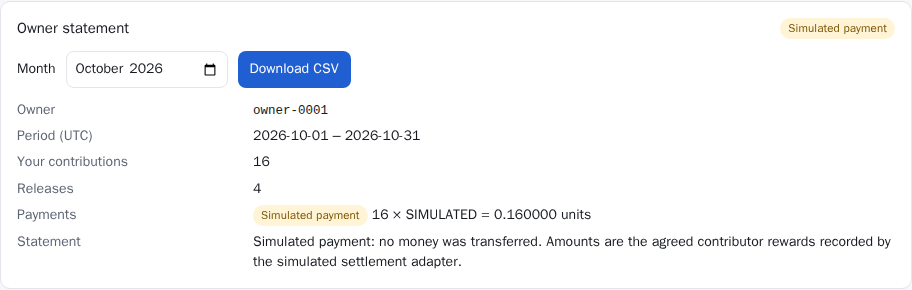
- Device health shows only your own devices: last upload, consecutive missing days and upload errors.
- Contributions and payments lists the reward for each valid contribution. Rewards are paid per valid, non-duplicate contribution, regardless of data size or what the result turned out to be.
- Owner statement totals by month and exports to CSV; in the pilot every entry is a Simulated payment.
- The payout address is used only for on-chain settlement; changing it also requires an
owner_signsignature.
Buyer
A buyer buys the differentially private result of a defined statistics task. Buyers never get any single device’s data, or even how many devices uploaded.
1. Browse the marketplace and request a purchase
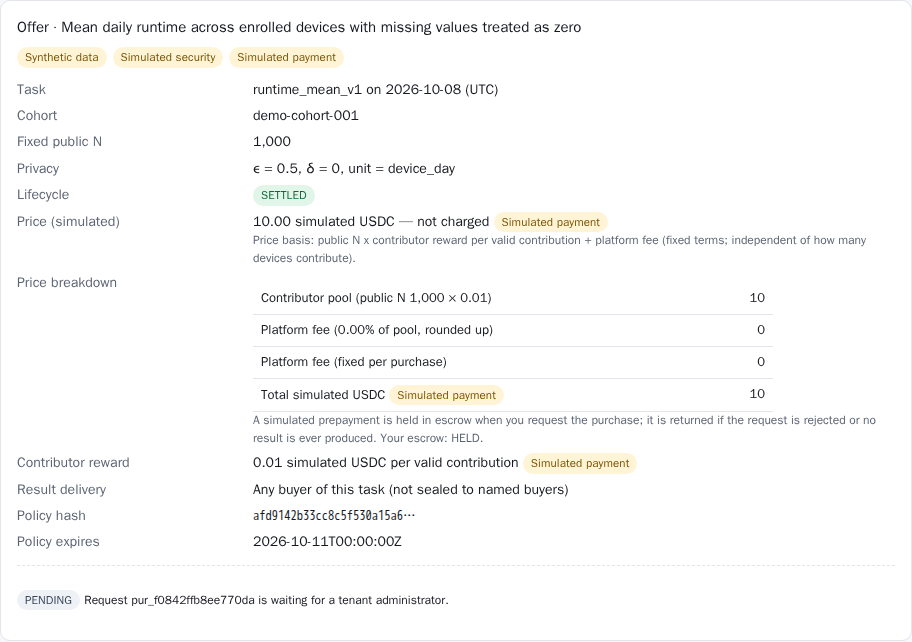
- Price = public N × reward per valid contribution + platform fee. These are fixed terms and do not change with the number of devices that actually upload.
- When you request a purchase, a simulated prepayment is held in escrow (HELD). It is returned if the request is rejected or the task never produces a result.
- The request grants nothing by itself; it waits for a tenant admin to approve it.
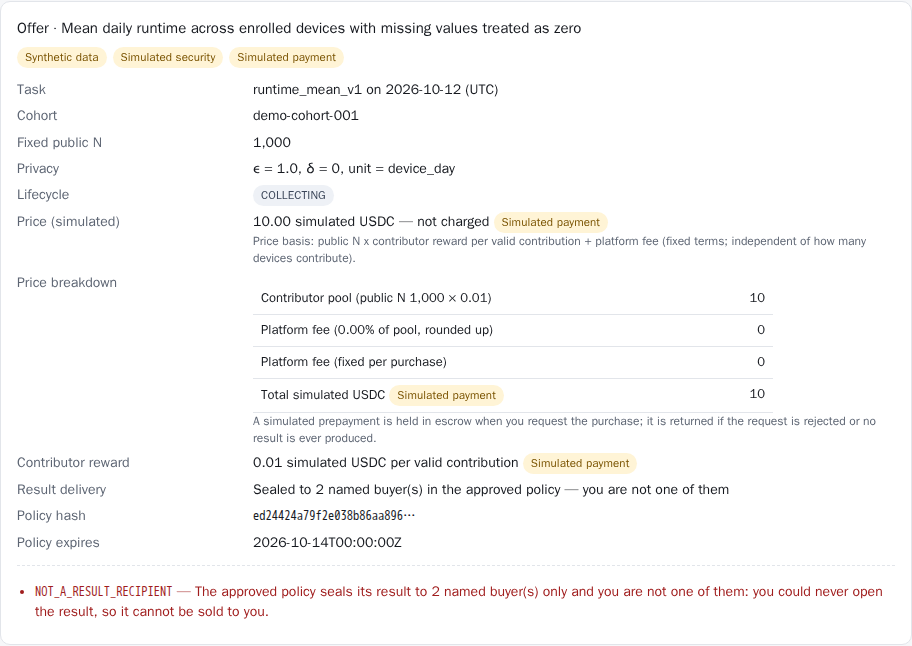
If a task’s result is sealed to named buyers and you are not one of them, the marketplace says why and refuses the purchase: you could never open the result.
2. Run a task and read the result
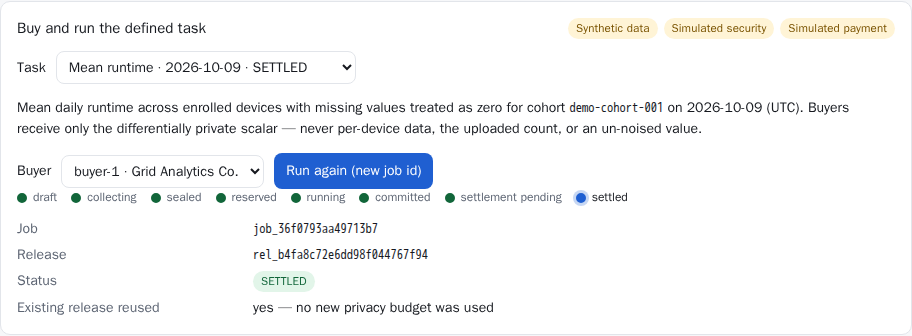
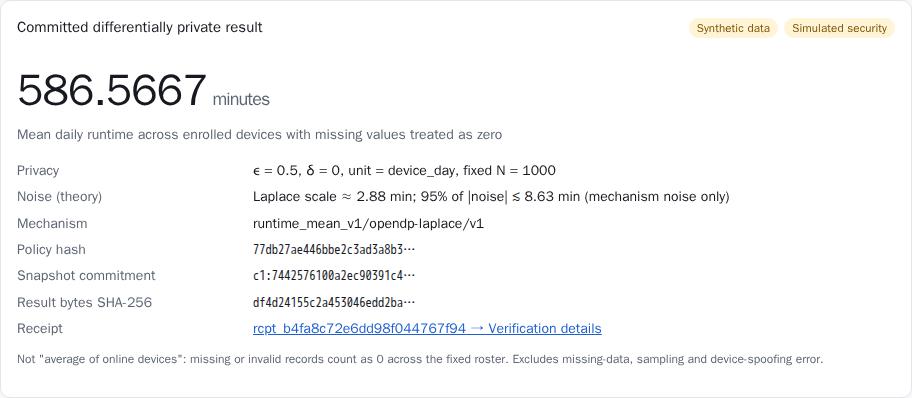
- In Buyer result, choose a task you are entitled to and click Run task. Tasks you subscribed to with auto-run start by themselves after sealing; there is nothing to click.
- The job goes through reserved, running, committed and settled, then shows the result. Each (cohort, day) is released only once.
- The result card states the noise size. Missing or invalid records count as 0 on the fixed roster, so this is not an “average of online devices”.
- When the result is sealed to you, the platform stores only ciphertext; open it locally with your own result key (see the verify command in the next step).
3. Export a result bundle and verify it offline
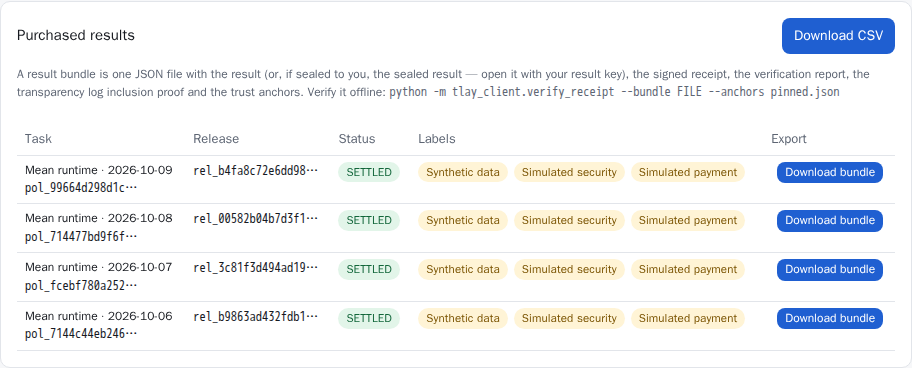
A result bundle contains the result (or the sealed document), the receipt, the verification report, the transparency log inclusion proof and the trust anchors. It verifies without a network connection:
python -m tlay_client.verify_receipt --bundle tlay-result-rel_xxx.json --anchors pinned.json --buyer-id buyer-1 --result-key-file ~/.tlay/buyer-1.result.keyGet the public keys in pinned.json from a channel outside the platform and pin them. Using only the anchors the platform gives you amounts to trusting the platform.
4. API keys
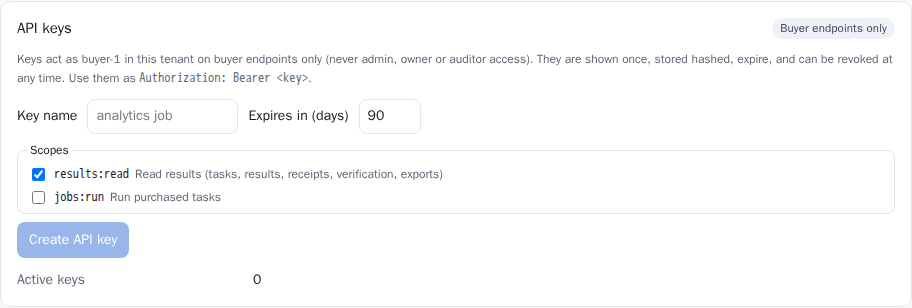
- Scopes:
results:read(read results, receipts, verification and exports) andjobs:run(run purchased tasks); validity 1–365 days. - Use:
Authorization: Bearer <key>. Keys can reach only buyer endpoints and never get admin, owner or auditor rights. - A key is shown once and the server stores only its hash. It can be revoked at any time and stops working immediately.
5. Notifications
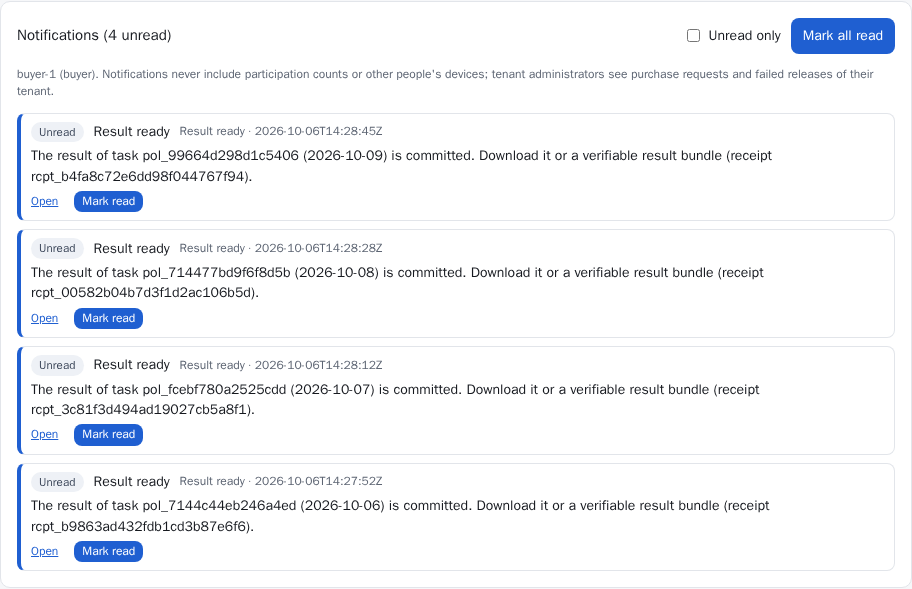
In-app notifications contain only information you can already see. You can also configure a webhook: the URL must be public HTTPS, every delivery carries an HMAC signature, and failed deliveries are retried automatically.
Auditors and public verification
Auditors review the tenant’s policies, releases and receipts read-only; anyone can verify a result by its receipt id without signing in. Neither can see participation counts, single-device data or result values.
Auditor view
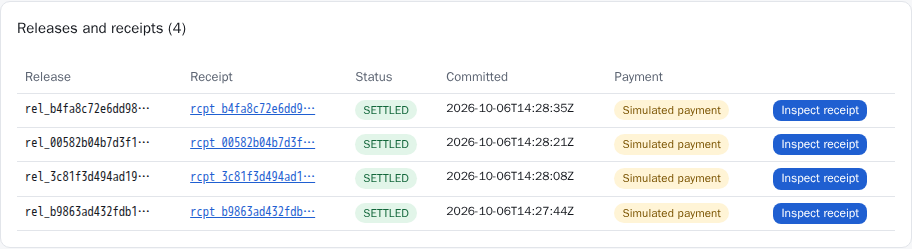
The Auditor page covers the audit scope, the transparency log’s signed tree head and integrity, all policies (including key authority signature checks), releases and receipts (with inclusion proofs), and the trust anchors.
Public verify
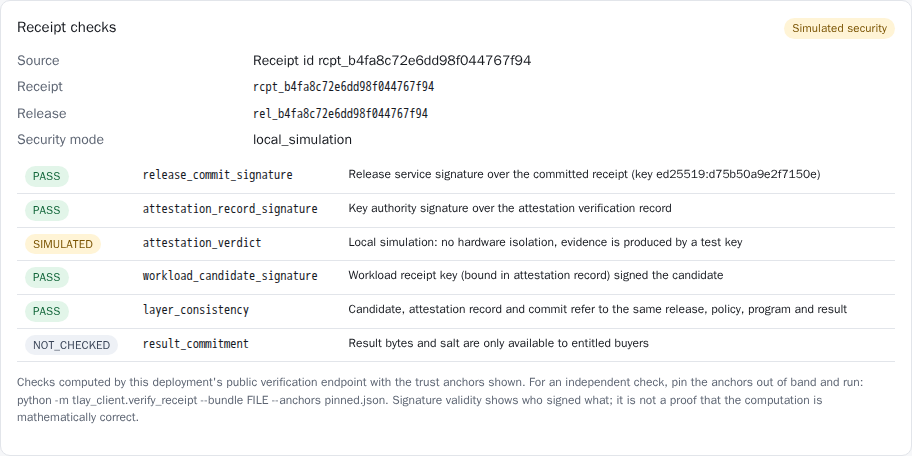
In Public verify, enter a receipt id (like rcpt_…), or upload a receipt file or result bundle. When you upload a bundle, the result commitment is checked locally in your browser; the result is never sent to the server.
| Check | What it verifies |
|---|---|
release_commit_signature | The release service’s signature over the committed receipt |
attestation_record_signature | The key authority’s signature over the attestation verification record |
attestation_verdict | Whether the hardware attestation was accepted (SIMULATED in local simulation) |
workload_candidate_signature | The program in the protected environment signed the candidate result with its bound key |
layer_consistency | Candidate, attestation record and commit refer to the same release, policy, program and result |
result_commitment | The result and the buyer’s salt open the signed result commitment (only a buyer who holds the result can check this) |
transparency_inclusion | The receipt is included under the transparency log’s signed tree head |
A valid signature shows who signed what; it does not prove the computation is mathematically correct. The public verify page is computed by this deployment. For an independent check, use the offline command from the previous section with trust anchors obtained outside the platform.
End-to-end example: a daily series
This is a run on the Google Cloud pilot on October 6, 2026: a synthetic population of 1,000 devices and 250 owners, computing “average daily runtime per device”, with the computation inside an Intel TDX confidential VM.
- The tenant admin creates a 2-day series in Policy series (October 7–8, ε = 1.0 per day, 2.0 in total), subscribes buyer-1 and turns on auto-run.
- The key authority admin checks it and approves the series, once.
- 250 owners each sign one standing consent on their own device; all of them took about 6 seconds in total.
- The scheduler creates the October 7 child policy (series day 0) 24 hours before the day starts; the key authority recomputes and checks it, then generates that day’s key.
- Devices encrypt and upload under the child policy: 975 upload successfully and 25 are offline (counted as 0).
- The scheduler seals the day and starts a job for buyer-1; the release service first debits ε = 1.0 from each device.
- The protected environment starts, presents its hardware attestation (
GCP_INTEL_TDX) to the key authority, receives the key, decrypts, computes, adds noise and seals the result to buyer-1. - The release service checks the signatures, commits, writes to the transparency log and anchors it, then settles contributor rewards (simulated). From job start to settlement: 69 seconds.
- buyer-1 exports the result bundle and verifies it offline on their own computer: every signature check and the transparency log inclusion proof pass.
- October 8: with no new approval or signature from anyone, the scheduler creates the child policy 24 hours ahead and steps 5–9 repeat.
Each device spends at most ε = 2.0 on this series, within the cap of 4; owners can revoke their standing consent before any day is sealed.
FAQ and error codes
Most refusals show a reason code on the page. These are the most common.
| Reason code | Where | Meaning | What to do |
|---|---|---|---|
NOT_A_RESULT_RECIPIENT | Marketplace | The result is sealed to named buyers and you are not one of them | Ask the tenant admin to name you as a result recipient in the next policy |
SCOPE_ALREADY_RELEASED | Running a task | This (cohort, day) has already been released | Entitled buyers read the published result directly; it is never recomputed |
CONSENT_REQUIRED | Sealing or running | Some owners have not consented yet | Wait for owners to sign consent in the Owner console |
SIGNATURE_INVALID | Owner submits a signature | The signature was not made over this message with your registered key | Copy the command from the page again and sign with the registered key file |
PAIRING_CODE_INVALID | Device pairing | The pairing code is wrong, expired or already used | Create a new pairing code in the Owner console |
KEY_MISMATCH | Confirming a pairing | The confirmed fingerprint does not belong to this device | Re-check the fingerprint the device shows; if it does not match, reject the pairing |
ROTATION_BLOCKED_COLLECTING | Rotating a device key | Data accepted today is not sealed yet | Rotate after the day is sealed; if you suspect the key leaked, click Stop first |
PAIRING_CODE_LIMIT | Creating a pairing code | More than 5 unused codes, or more than 20 per hour | Cancel unused codes, or try again later |
API_KEY_SCOPE_MISSING | Using an API key | The key lacks this scope (for example jobs:run) | Create a key with the scope you need |
API_KEY_ROUTE_NOT_ALLOWED | Using an API key | API keys can reach only buyer endpoints | Sign in to the web app for administrative actions |
EPSILON_OUT_OF_RANGE | Admin creates a policy | ε is outside the allowed range | Single-day ε at most 4; a series total within the per-device cap |
SERIES_OVERLAP | Admin creates a series | The cohort already has a series covering these days | Choose other days, or stop the old series first |
ROLLBACK_DETECTED | Any action | The database is behind the anchored transparency log (for example, an old backup was restored); the service has stopped | Contact the operator to recover; budget is not refunded and results are not recomputed |
ENV_OVERRIDE_NOT_ALLOWED, PROJECT_NOT_ALLOWED, ENV_PIN_MISMATCH | Key release log | The runtime environment does not match the policy; no key was released and the task does not run | The operator investigates the deployment configuration |
Why does the result differ from the average I expected? Missing or invalid records count as 0 on the fixed roster, and the result has differential privacy noise added; the result card gives the theoretical noise size.
Does a published result change if I revoke consent? No. If you revoke before sealing, your records are excluded; after sealing, revocation affects only later days.
What happens when a device’s privacy budget runs out? Later releases involving that device are refused at reservation and do not run. Budget is never refunded. Admins can see devices near the cap ahead of time under Privacy budget.
Why can’t buyers and auditors see how many devices took part? The participation count itself leaks information, so only the tenant’s admins can see it; that is also why the price is based on the public N.
Want to try it with your fleet? Write to info@tlay.io, or read the thesis behind the platform.
Join the network Book a demo